 Sova
Sova

Guide & support
How to do things in Sova — every setting and control, what it changes, and where it lives. In plain words.
Reference
Groups
A group is a list with its own people, alerts and rules — a family list, a team, a class. Everything below lives in the group's Settings: open the group, then tap Settings. Many choices are also offered when you create the group.
Create and set up
Name, icon and color, plus the sharing and alert choices below.Where: Groups tab → +.
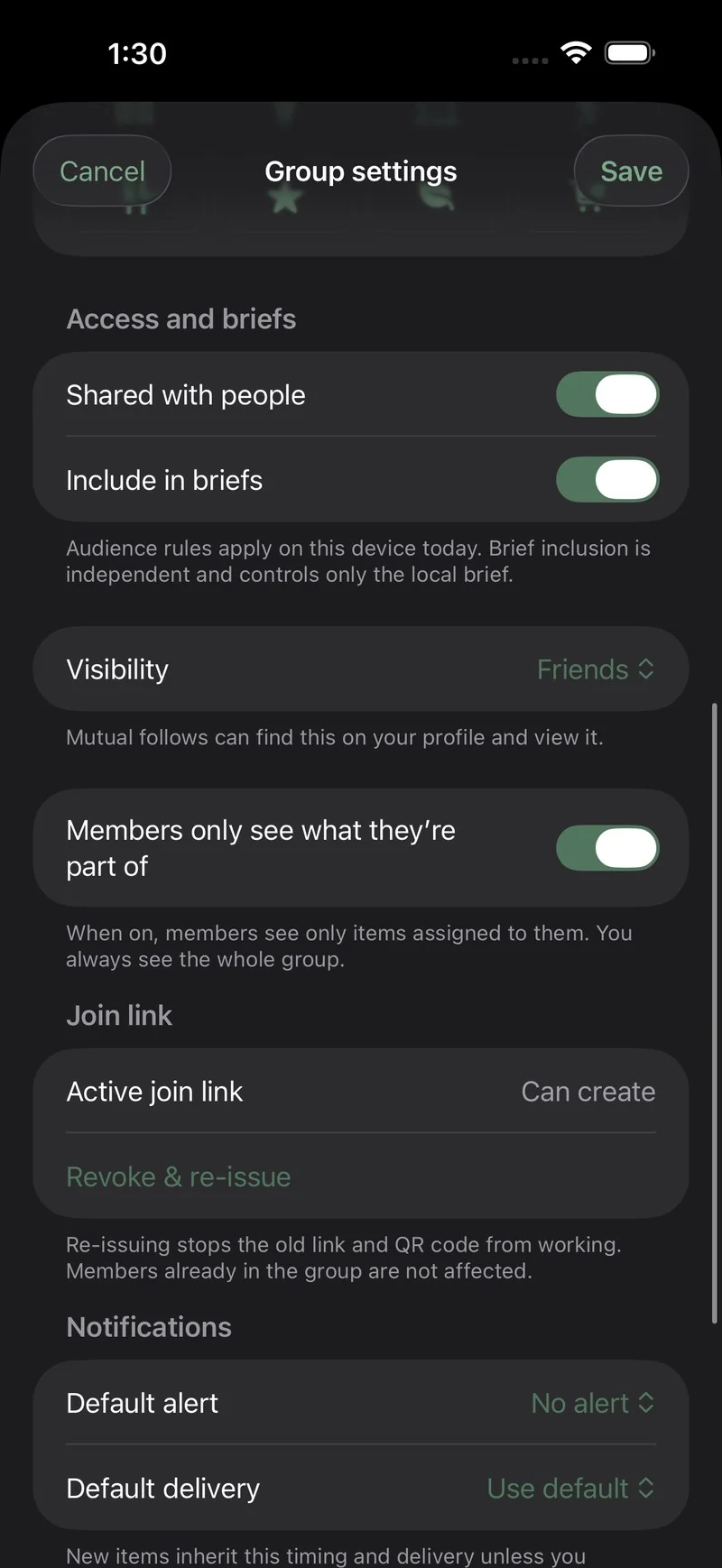
Off, the group is only you. On, you can invite people — and the member-view and invite-link choices appear.Where: group → Settings → Access. Also when you create the group.
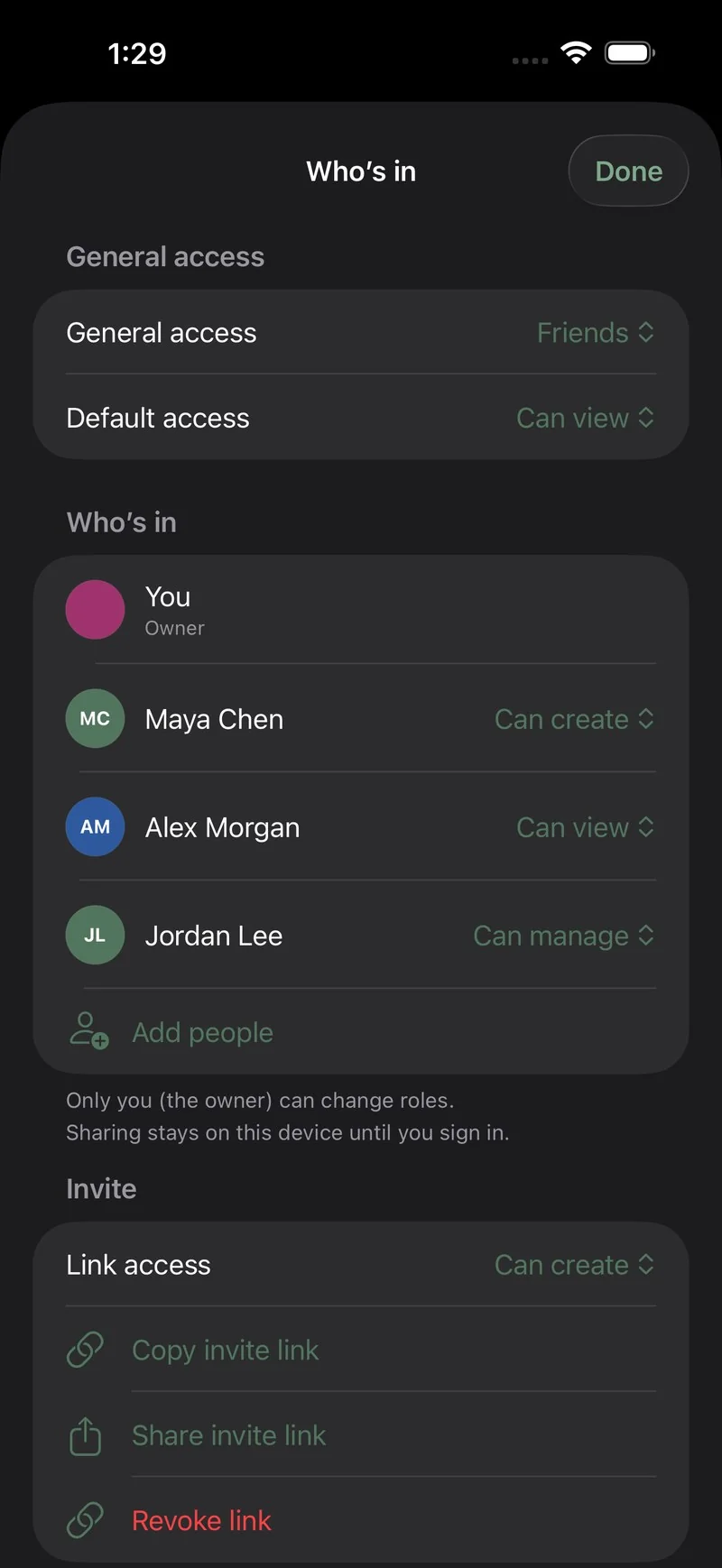
People you add by name, or anyone with the invite link. The Link access choice sets what link-joiners can do — Can create, or Can view.Where: group → Who's in.
A few lines about the group, shown at the top of its settings.Where: group → Settings.
Roles — what each person can do
Reads the group, changes nothing.
Adds and edits items.
Everything a creator can, plus editing the group's settings (access, alerts, member view) and inviting people with the group's link and QR code.
The person who created the group — an admin automatically and permanently. Only the owner can change roles, and only the owner can delete the group.
Change a role anytime: open the group → Who's in, and pick a role next to the person. The role choices appear for the owner; everyone else sees roles read-only. All three roles are available on Free and Pro alike.
Member view
Made for trainers, teachers and managers. On: members with the Viewer role see only the items assigned to them, and only themselves in the people list — everything else shows as untitled busy time. You, and any creators or admins, always see the whole group. Off: every member sees everything.Where: group → Settings. Also when you create a shared group.
Invite link & QR code
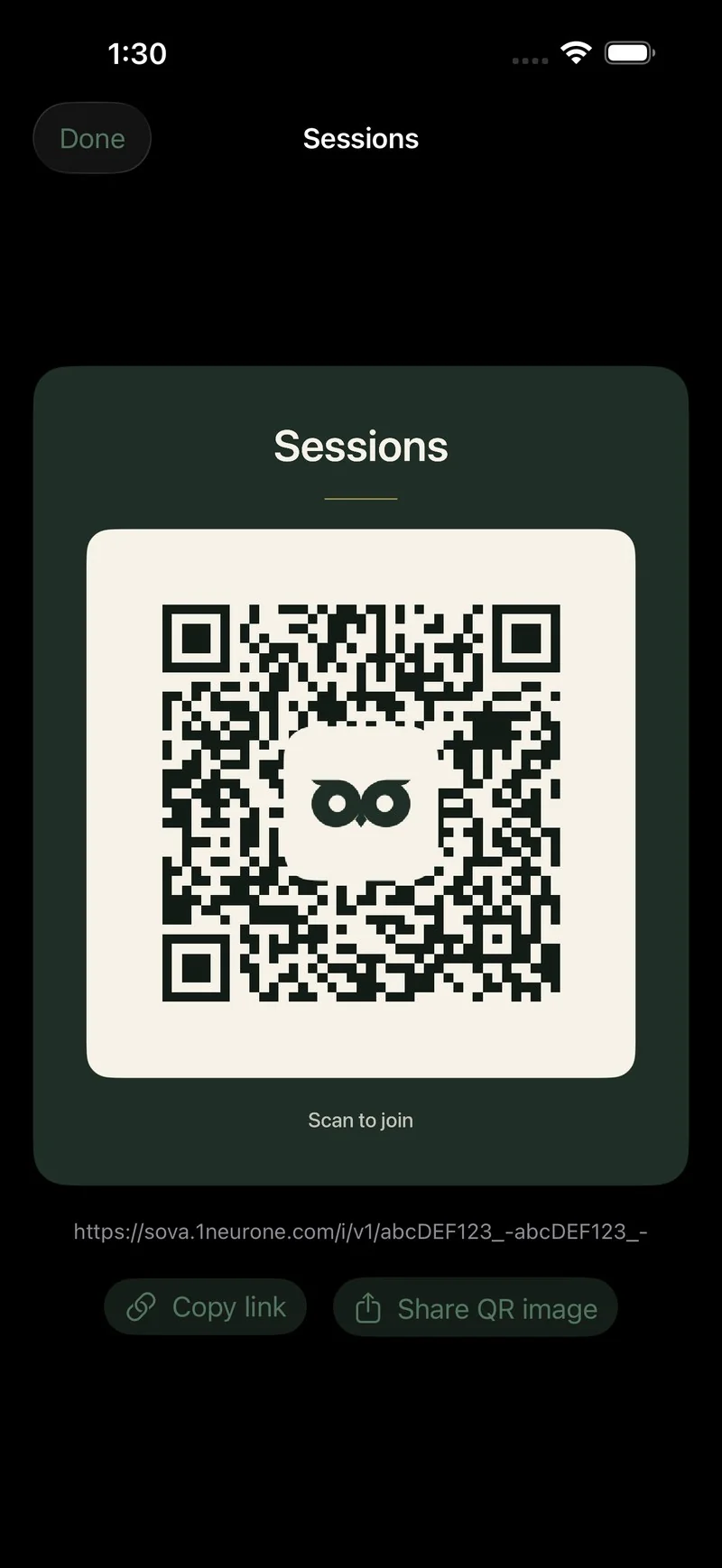
You get the group's QR code and a link to send. People in the same room scan the code; anyone else gets the link by message. The first time, Sova makes the link for you — you need to be signed in with Apple.Where: open the group → Invite, or the QR code button at the top (owner or admin).
One invite link is active at a time. Replacing it stops the old link and QR code from working and creates a new one. People already in the group are not affected.Where: group → Settings, in the invite link section (owner only).
Stops the link and QR code from working without making a new one. Invite again whenever you're ready.Where: open the group → Who's in (owner only).
Alerts for the group
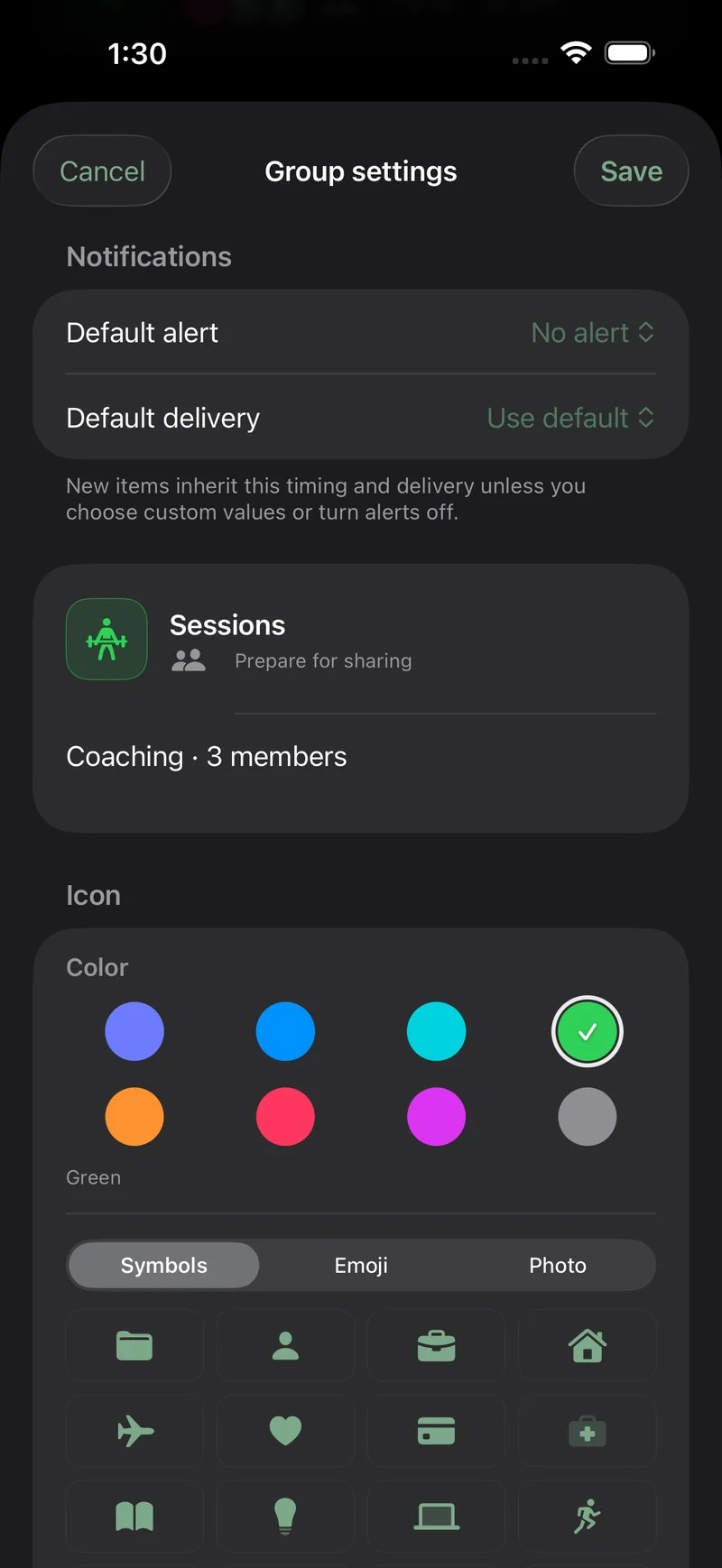
No alert, or 10 minutes, 30 minutes, 1 hour or 1 day before. New items in the group follow it.Where: group → Settings → Notifications.
Standard (banner and sound), Quiet (banner, no sound) or Silent (Notification Center only).Where: group → Settings → Notifications.
Appears when you change the default. On: current open items take the new default too — and any custom alerts they have are replaced.Where: group → Settings → Notifications.
Archive and delete
Puts the group away without losing anything — it leaves your lists but keeps its items. Unarchive anytime.Where: group → Settings.
Removes the group and its items. Owner only, with a confirmation first.Where: group → Settings (owner).
Reference
Sharing & invites
Sharing turns a group into a place for several people. Two shared lists are free, with up to 10 people in each; Pro lifts the limits.
Invite someone
- Open the group and turn on Shared with people in its settings — or create the group shared.
- Tap Invite, then send the link or show the QR code. Send the invite link any way you like, or let people in the room scan the QR code.
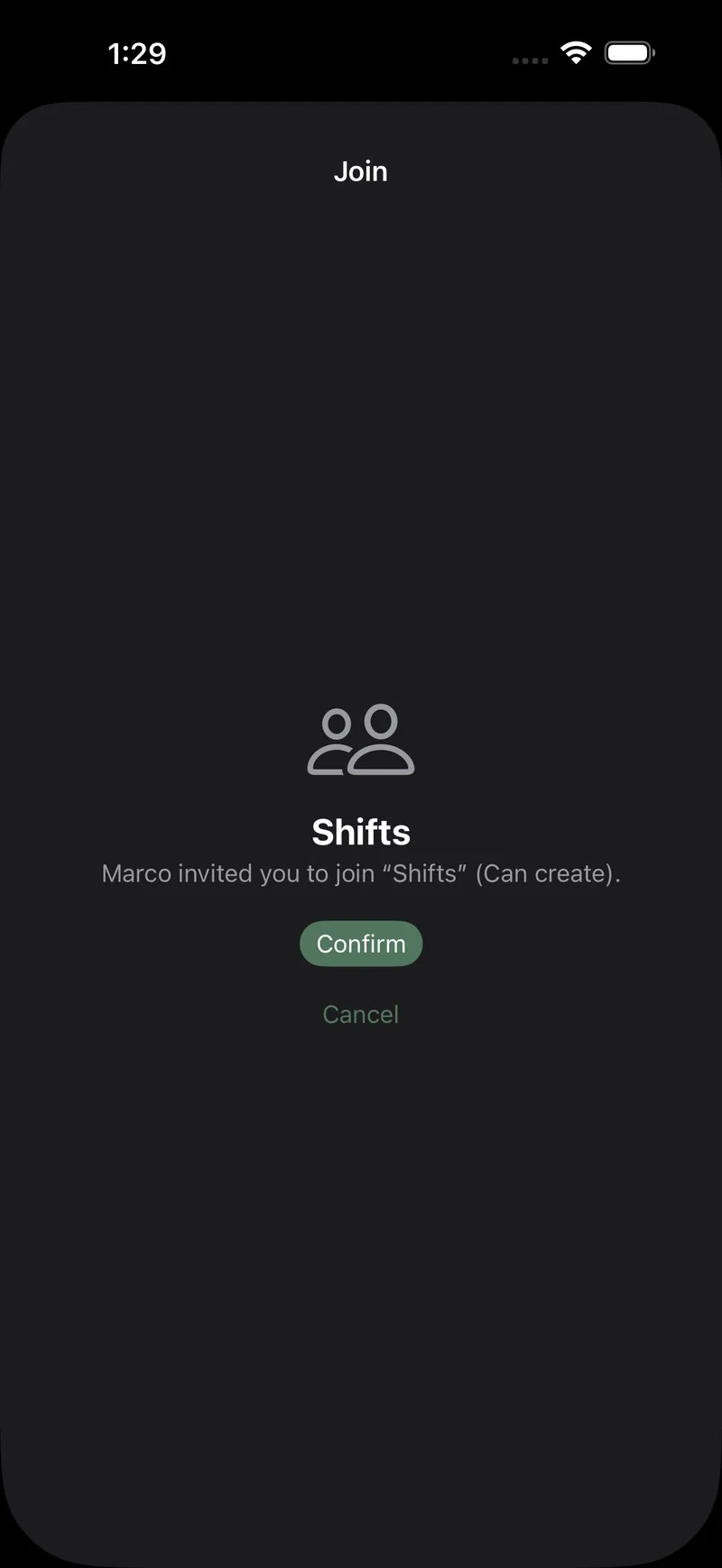
- They join. Opening the link shows what they're joining; with Sign in with Apple it usually takes under two minutes — no password to invent. If they install Sova from the invite, they open the invite link again after installing, and it takes them straight to the group. No iPhone? The same link opens the list in a browser, where they join with a code sent to their email.
Settings & controls
What people who join by link or QR can do: Can create, or Can view.Where: group → Who's in (owner).
The people list of a shared group — see everyone's role, add people, remove people.Where: open the group → Who's in.
Stops the current link and QR code from working and makes a new one; members already in stay. See Groups for details.Where: group → Settings, in the invite link section (owner only).
Sends a one-time snapshot of the list instead of an invite — later edits don't follow it.Where: open the group → share menu → Share a copy.
When either side adds or ticks something, it appears on the other phones as it happens.
Reference
Notes & items
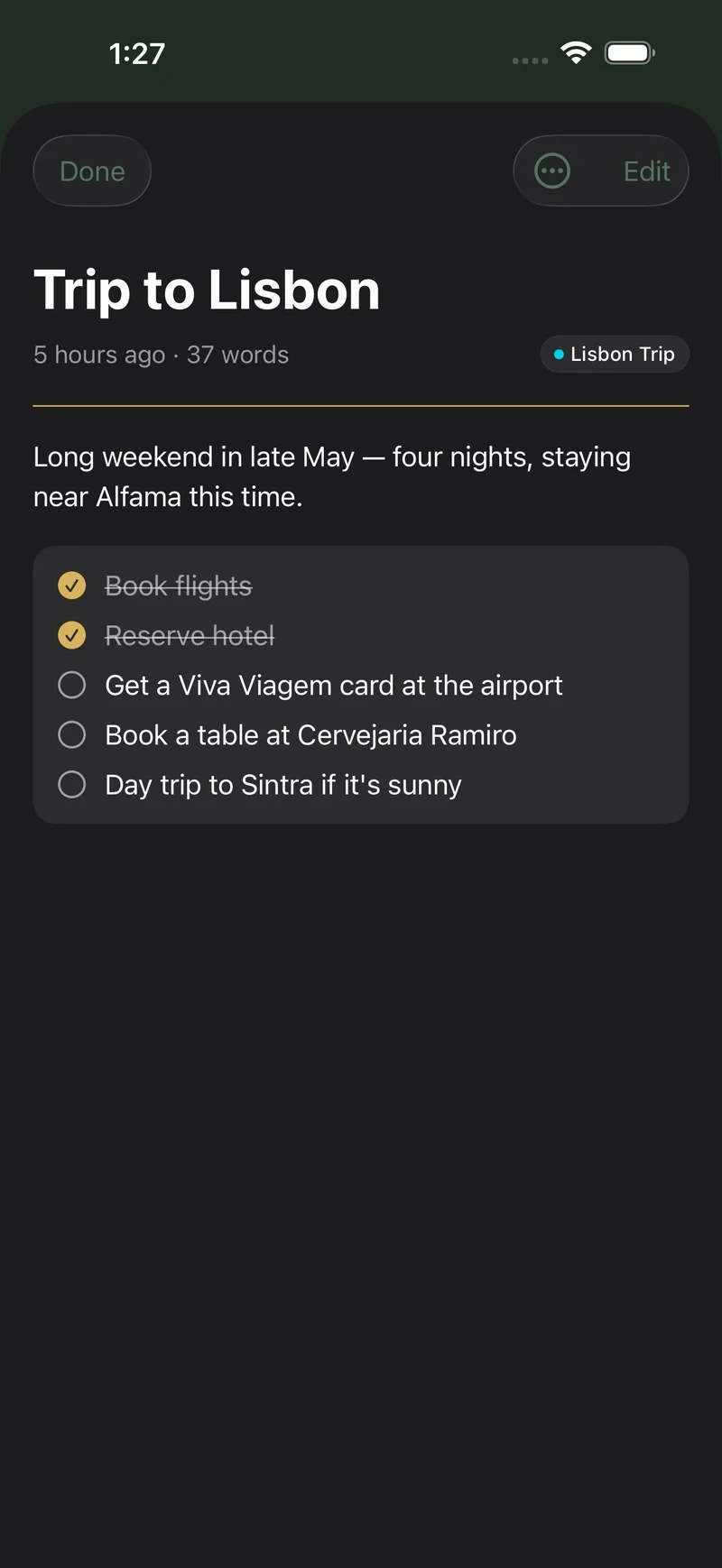
Everything you write in Sova is an item with a type. A note is just a note — no forms, no required boxes — and a checklist or a photo can live right inside it.
Types — what each is for
For writing things down. No schedule, no alerts unless you ask.
Something to do, with flexible timing.
A moment in time, with a start and an end — timed or all-day.
The alert is the point — a date alone is enough.
Anchored to a due date, and warns you as it nears.
Stays on your lists until you close it.
Your own kinds, with their own color, symbol and default alert — for one group or for everything.Where: More → Types.
Settings & controls on an item
Use default, No alert, or a custom alert — for this item only.Where: open the item.
Hands the item to a member of a shared group — one tap, and they get a quiet note that something is theirs.Where: open the item → People.
A tick-off list inside any note.
Attach photos to notes. A Pro feature.Where: open the note.
Paste plans from a message or email; Sova reads the dates and turns them into items.Where: open the group → Add from text.
Reference
Calendars & Bring into Sova
Your meetings, on your calendar. The simplest start is the calendars already on your iPhone — Apple, Google and Outlook accounts included. Sova asks for Full Access once, you pick which ones appear, and they show up inside Today and the Home Screen widget next to your notes and lists. Everything stays on your device. Calendar links and Scan are there when you need more.
Show my meetings (iPhone calendars)
- Allow Full Access. Sova asks once. Choose Full Access so your meetings can appear — "Add Events Only" lets Sova write but not read, so nothing would show. Sova never receives your accounts' sign-in details.
- Add accounts on the iPhone if needed. Google, Outlook or iCloud calendars appear once the account is added in iOS Settings → Calendar → Accounts.
- Pick which calendars appear. Toggle the ones you want in Sova — work, family, personal stay recognisably separate.
Also: calendar links
Choose an app, paste its calendar link, and its plans appear in Today and Calendar. The link is kept in your iPhone's Keychain, and the feed is read on your device.
Connect an app
- Open the library. In Today, tap the grid of squares in the top bar — also in the Calendar tab, and in More → Add calendars.
- Choose the app. Each one has a short step-by-step for finding its calendar link.
- Paste the link and choose a group. Its plans land on your calendar, side by side with your notes.
The catalog, by shelf
Airbnb, Booking.com, VRBO, Expedia, Hotels.com, Kayak.
Flight bookings, SNCF Connect, DB Navigator — many hand you a calendar file to open in Sova.
Apple Calendar, Apple Reminders, Google Calendar, Outlook, Yahoo, Fastmail, iCloud public calendars, Zoho, GMX — and the todo apps Todoist, TickTick and Remember the Milk.
Canvas, Blackboard, TeamSnap, GameChanger, Meetup, Asana, Trello, Basecamp, Deputy, When I Work.
The Calendar link choice takes any https calendar link ending in .ics, from any app that offers Export or Subscribe.
Scan a screenshot Sova Pro
No calendar link at all? Screenshot the confirmation instead — a booking, an e-ticket, a hotel email, a meeting invite. Sova reads it and drafts the event for you. Nothing is kept: the screenshot is sent securely to be read and is never stored.
- Take the screenshot. In the email or booking page, capture the block with the name and the dates — don't crop them away.
- Open it in Sova. In Create, tap Scan a screenshot — or open the app in Bring into Sova and choose Scan. Photo library or take a photo of another screen.
- Check and save. Sova drafts the event — title, dates, times, place, confirmation code. You review everything before it lands in your calendar. If it holds several plans, you review them together in one list. Pro includes 20 scans a day.
Text works too: copy a school email or a staff rota, open Bring into Sova (or share the text to Sova) and tap Find dates and to-dos. Sova finds up to 12 plans, each with a suggested list, and adds nothing until you tap Add. The text is sent securely to be read and is never stored; it counts toward the same 20 a day.
If a screenshot isn't a booking or event, Sova says so instead of guessing — you'll see "This screenshot doesn't look like a booking or event."
A single file, opened once
Many apps hand you a calendar file instead of a live link — airlines, ticket sites, event pages.
- Find the file. In the confirmation email or on the booking page, tap "Add to calendar" to download the .ics file.
- Open it in Sova. Tap the attachment or the downloaded file, then choose Sova. If Sova isn't listed, tap Share or "Open in" first.
- Review and save. Sova shows what it found. Choose a group and save — the plans land on your calendar.
A file is a one-time snapshot — it won't refresh. For trips that change, use a live calendar link instead.
Reference
Availability
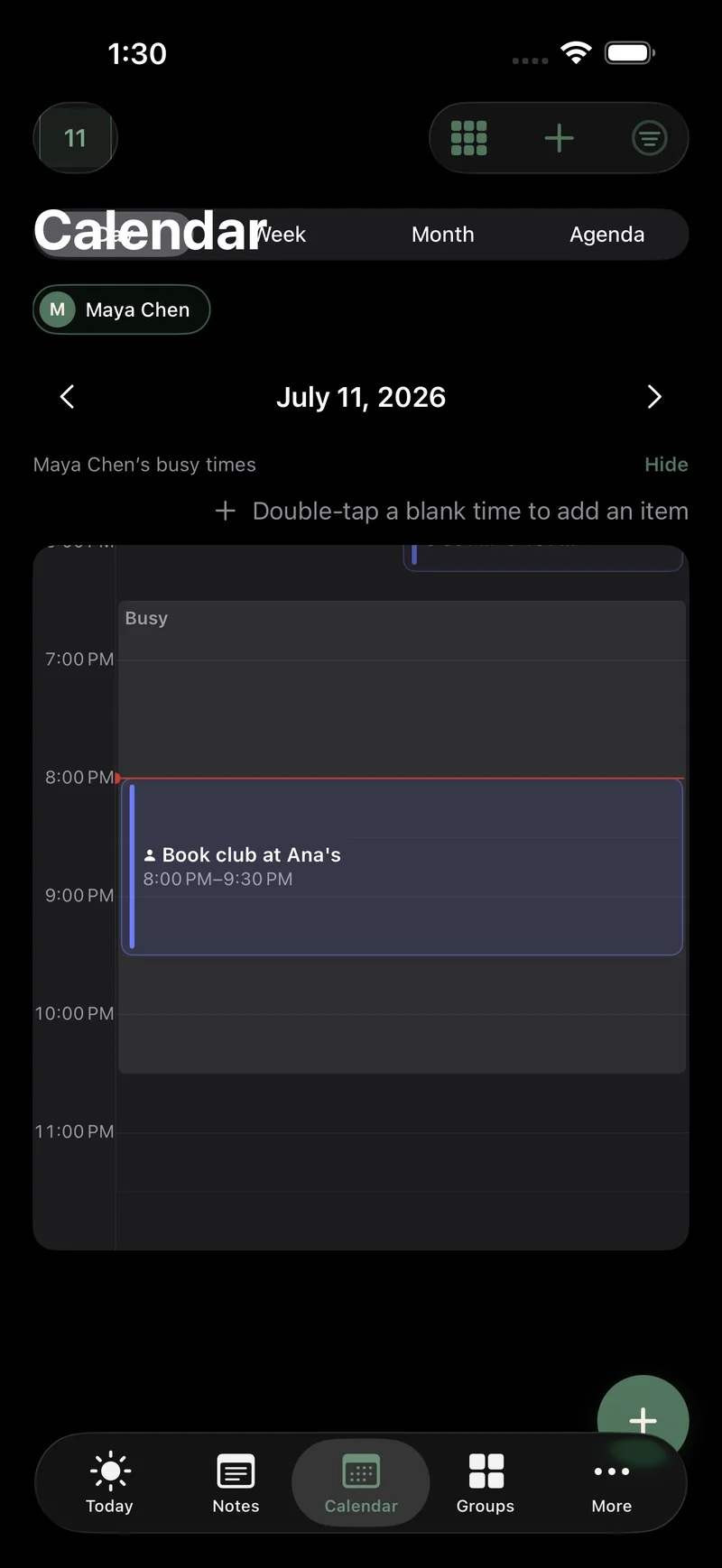
Share when you are busy without sharing what you are doing. People see free and busy — never the names of your plans. Titles, group names, locations and details never leave your device.
Settings & controls
Share with… adds a person; Stop sharing removes them and deletes their copy. Free shares with up to 2 people, Pro up to 50.Where: More → Settings → Availability.
Every group starts off. Turn on the ones that count as busy.Where: More → Settings → Availability → Groups.
How whole-day plans appear to others: Hidden, Busy all day, or Away.Where: More → Settings → Availability → Groups.
Any single item can break from its group's rule.Where: open the item.
The window Find a time searches — a start and end hour for your day.Where: More → Settings → Availability → Waking hours.
Find a time
When you add people to an item, Find a time looks at both calendars, right on your iPhone, and suggests moments that work for everyone. Nothing is sent away to be read.
Reference
Notifications
Item alerts follow a calm chain: an item uses its type's default first, then its group's — and any single item can override both. Everything below lives in More → Settings → Notifications unless noted.
Settings & controls
Shows whether iOS lets Sova notify, with a button to open iOS Settings when it's off.
The master switch for reminders on your items.
Alerts when someone adds you to a shared group or assigns you something — independent of your own reminders.
Your app-wide style: Standard (banner and sound), Quiet (banner, no sound) or Silent (Notification Center only). Groups and items can override it.
A daily nudge at a time you choose that opens Today.
A daily check-in at an hour you choose. It never names a plan.
Where you usually leave from, how you travel, and how early to warn you — so Sova can tell you when to leave for a plan.
Each group's default alert and delivery, at a glance — tap one to open it.Where: also in group → Settings → Notifications.
The default alert for each custom type you created.Where: managed in More → Types.
Every alert currently scheduled, with a button to turn any of them off.
Reference
Widgets
Sova lives on your Home Screen and Lock Screen: what's now, what's next, and a quick-capture button that starts a note in one tap.
Add a widget
- Home Screen: touch and hold the Home Screen, tap Edit, then Add Widget, and choose Sova.
- Lock Screen: touch and hold the Lock Screen, tap Customize, then select a widget area.
Settings & controls
Titles and groups, Titles only, or Counts only — for when your screen isn't private.Where: More → Settings → Widgets.
Keeps things past their moment on the widget until you close them.Where: More → Settings → Widgets.
Lets the widget look past today when the day is clear.Where: More → Settings → Widgets.
Notes, locations, links and attachments are never copied to widgets.
Reference
Pro
Free is complete — notes, Today, calendars, widgets, two shared lists. Pro takes it further: screenshot scanning, dictation that fills in the time and place, unlimited shared lists, availability sharing with more people, and photo and file attachments.
Manage Pro
See your plan, prices and everything included — restore purchases here too.Where: More → Settings → Sova Pro.
Reference
Privacy & data
Sova keeps your plans on your iPhone: it works offline, and there's no account until you want one. What leaves the device when you choose it — a shared group's items or your busy times — is spelled out in the privacy policy.
Settings & controls
Packs your groups, items, custom types and attachments into a single file you keep. Provider keys and system permissions are never included.Where: More → Settings → Data controls.
Brings an export file back — with a private preview before anything is replaced.Where: More → Settings → Data controls.
Removes your plans from this iPhone, and clears shared busy blocks when you're signed in. Asks first.Where: More → Settings → Data controls.
Goes further: removes your Sova account. Asks first.Where: More → You → Delete account.
Questions, answered
Does Sova work offline?
Yes. Notes, Today, calendars and widgets all work with no internet at all. You only need a connection to share a list or your availability with someone.
What happens to my plans if I change phones?
Your plans live on your iPhone, so a normal iPhone backup carries them over. You can also move them yourself: export from Data controls on the old phone, import on the new one.
We're leaving Maple. Can Sova import our Maple file?
No. Sova does not read a Maple export. Maple closes on 31 December 2026 and asks you to export first — we repeated their facts, not ours, on the Moving from Maple page (also in French, Spanish, Portuguese, Russian, and Chinese). What Sova can do today is bring in the calendars already on this iPhone, open a calendar file, or start a new shared list.
Contact
Talk to a person
Support and anything about the app: hello@sovaplanner.com — a person reads every message, and we usually reply within a day.
Press and partnerships: press@sovaplanner.com — put “press” in the subject so it lands in the right pile.
You can also find us on X.